Hierarchy & Operations
The core power of Peek a Node comes from its Hierarchy system, allowing you to manage node groups and materials contextually.
Additionally, the Hierarchy is the base for the Node Group Branching Operations. It allows you to create Unique Variants of a node group, which are independent instances of the same node group that can be modified without affecting the original.
Peek a Node Group
To start, right-click on any node group, (only node groups can be seen in the Peek Hierarchy to mantain a logical order) and select:
Peek Options -> Peek Node Group
If you want to simply Peek a Node refer to the Global Collections section.
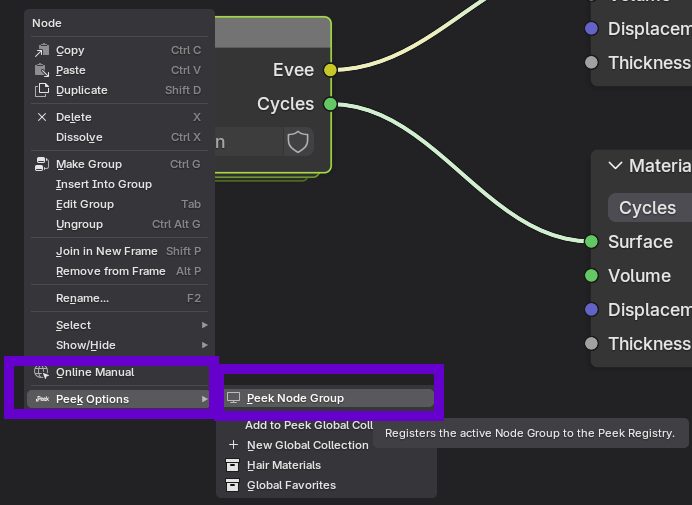
This adds the node group to the Peek Hierarchy and just like that Node Group Branching Operations are ready to use.
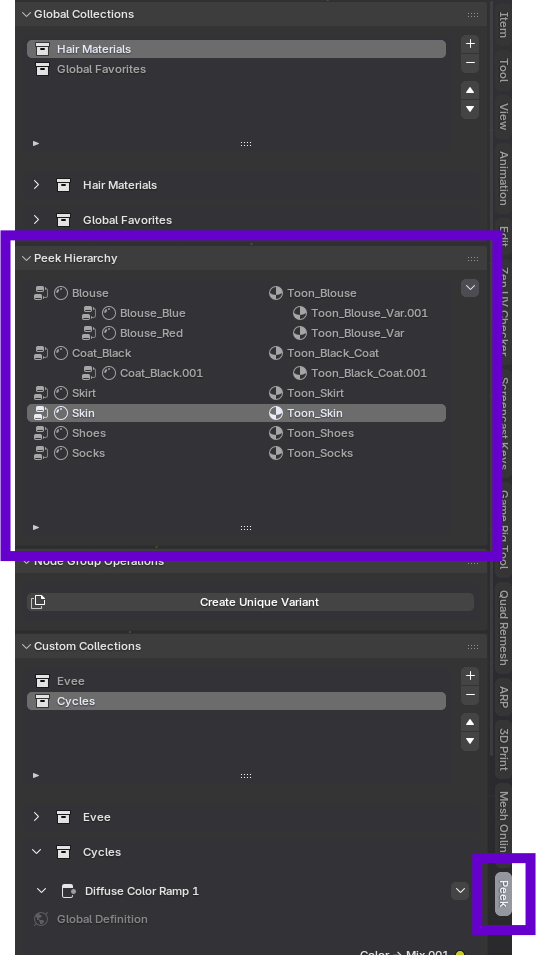
The Peek Hierarchy
The hierarchy shows the relationship between your node groups and the materials they belong to.
It shows both the Node Group and the Material it belongs to. Both can be renamed separately from the Hierarchy, by double clicking their names.
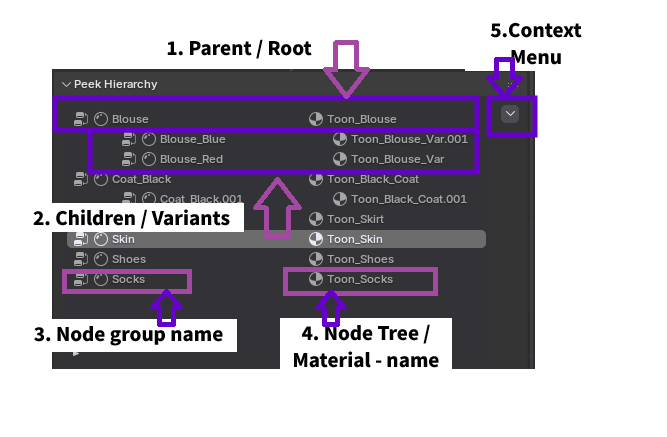
Parts of the Hierarchy
-
Parent or Root Material: A root level material in the Hierarchy, from which variants can be created.
-
Children Variants: Variants of the root material are displayed with an indentation below the root material.
-
Node Group: The node group that is being visulized in the Hierarchy, its name can be changed by double clicking it.
-
Node Tree / Material: The node tree / material that the node group belongs to, its name can be changed by double clicking it.
Hierarchy Context Menu
Clicking the dropdown arrow next to a hierarchy item reveals the following management operations:
-
Apply Material to Selected Object: Instantly applies the current material. Including all active Peek configurations and variants to any other objects currently selected in the 3D Viewport. This ensures consistent material assignment across your scene.
-
Remove node group from file: Permanently deletes the node group data from the Blender project file. Caution: This is a destructive action that will remove the node group from all materials that reference it.
-
Remove from peek view: Stops tracking this node group in the Peek sidebar. The node group and its data remain in your project and material, but it will no longer clutter your Peek Hierarchy interface.
Node Group Operations
As mentioned earlier, Peek distinguishes between a Root Material (the original) and Variants.
Root Material
When a node group is first added to the hierarchy, it is designated as the Root Material. This represents the master version of your material.
To create a variation without altering the original, select: Node Group Operations Panel -> Create Unique Variant. This creates a new unique variant material instance that branches off from the root, allowing for safe experimentation.
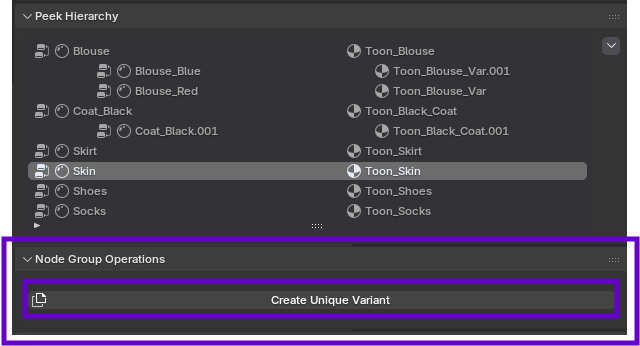
Unique Variants
A Unique Variant appears as a child of the Root Material in the hierarchy. This structure allows you to manage multiple iterations of a material on the same object or across different objects.
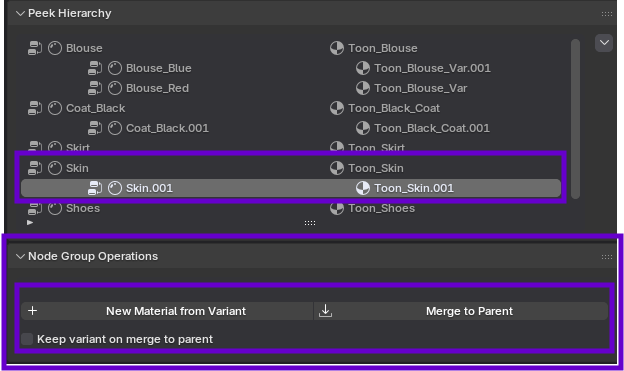
Merging Variants To Parent
Once you are satisfied with a variant, you can commit its changes back to the Root Material or manage its persistence (Peek allows to save as many variants as you need from a Root Material) using the Merge operations.
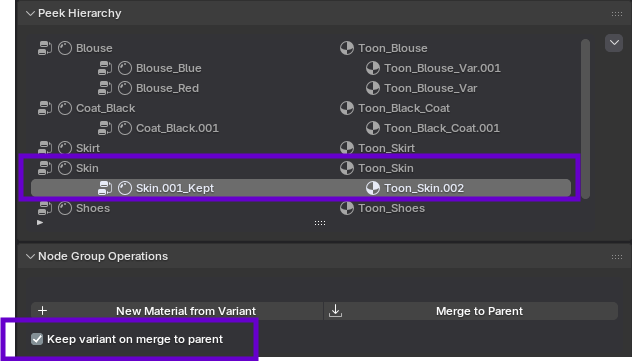
Merge to Parent: This option from the Node Group Operations Panel Overwrites the Root Material's settings with those of the currently selected variant. This effectively promotes the variant to become the new Root Material from which subsequent variants will inherit.
New Material from Variant This option from the Node Group Operations Panel Creates a new material from the currently selected variant. The variant won't depend on the Root Material anymore and it's currently the only way to remove a variant from a Root Material.
Option: Keep Variant on Merge This toggle controls the post-merge behavior of the variant itself:
If Disabled (Default): The variant is deleted after a Merge To Parent operation has been performed. The object reverts to using the updated Root Material.
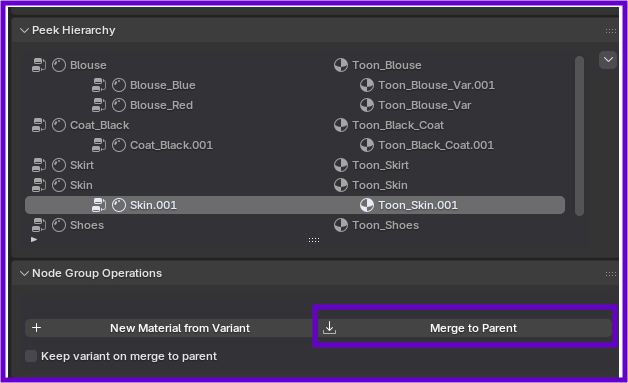
If Enabled: The variant is preserved as a separate, and unlinked material on the object, even after a Merge To Parent operation has been performed.