Nodes in Peek
Individual nodes within the Peek sidebar have their own context menu for quick organization.
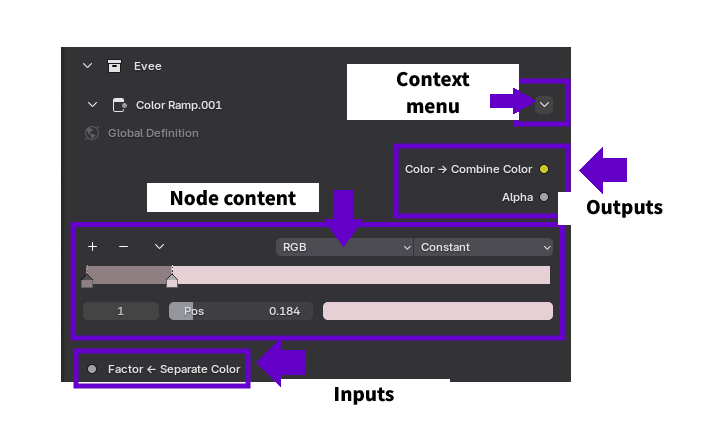
Parts of a Node
Node Content: The node controls and parameters are displayed here.
Inputs: The inputs of the node are displayed here. If they are connected to other nodes, the connection will be shown on the Right Side of the input. Input<-Connected Node
Outputs: The outputs of the node are displayed here. If they are connected to other nodes, the connection will be shown on the Left Side of the output. Output->Connected Node
Node Operations
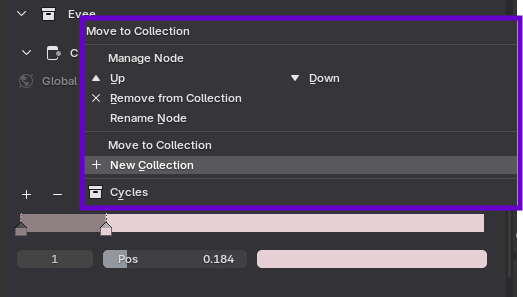
Clicking the dropdown arrow on a node provides the following options:
-
Up/Down Arrows: Relocates the node within the current collection, allowing you to reorder parameters for better visual organization and logic flow.
-
Remove from Collection: Unlinks the node from the current Peek collection. This is a non-destructive action; the node remains fully functional (and visible) within the Shader Editor, but will no longer appear in the sidebar interface.
-
Rename Node: Updates the display label of the node. This allows for user-friendly naming conventions (e.g., "Dirt Level") without altering the actual data block name or affecting other references in Blender. When prompted, press the check mark button to confirm the new name of the node.
-
Move Collection: Transfers the node to an existing collection or initiates the creation of a new collection. This is useful for restructuring your interface as your node graph grows in complexity.